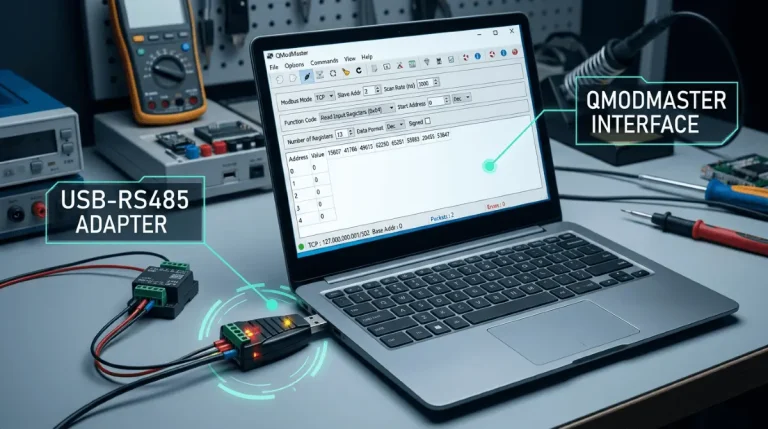
QModMaster User Manual: Every Menu & Setting Explained
This is an unofficial, community-written manual for QModMaster — the free, open source (LGPLv3) Modbus RTU/TCP master simulator. It covers every dialog and setting in the program, so you always know what a checkbox does before you touch it. Prefer learning by doing? Follow the QModMaster tutorial, revisit the Modbus master basics, or compare QModMaster with alternatives in our free Modbus master roundup.
Managing Connections
Use File → New to create a connection and choose RTU or TCP. Each connection opens in its own tab, so you can talk to several devices at once. Use the toolbar or File menu to connect, disconnect, and re-open saved connections.
RTU Settings Dialog
- Serial port: your adapter’s port — COM3/COM4… on Windows, /dev/ttyUSB0 on Linux.
- Baud rate: must match the slave device (9600 is the most common default; 19200 and 115200 are also typical).
- Parity / Data bits / Stop bits: the classic “8-N-1” (8 data bits, No parity, 1 stop bit) suits most devices — but it must match the slave exactly.
- RTS Control: toggles the RTS handshake line for RS485 adapters that need hardware-controlled direction switching. Leave it off unless your adapter’s documentation says otherwise.
- Response timeout: how long QModMaster waits for a reply before reporting a timeout. Raise it on slow or heavily loaded devices.
TCP Settings Dialog
- IP address / hostname: the Modbus TCP device on your network.
- Port: 502 is the standard Modbus TCP port; change it only if your device uses a custom one.
The Read/Write Dialog
- Slave ID: 1–247. Must match the device’s configured address; a wrong ID is the #1 cause of timeouts.
- Function Code: pick from 01, 02, 03, 04, 05, 06, 15, 16 depending on what you want to read or write.
- Start Address: 0-based protocol address — manual address 40001 is protocol address 0.
- Number of Points: how many coils/registers to transfer in one request.
- Data Type: how raw register values are interpreted for display (Int16, Int32, Float32, Hex, Binary).
Scan Mode
Scan mode turns a one-shot read into continuous polling: QModMaster repeats the request on a timer and refreshes the values live. Use it to watch sensors change or to soak-test a device over hours.
The Bus Monitor Panel
The Bus Monitor is a dockable panel showing the raw hex bytes of every request QModMaster sends and every reply it receives, with timestamps. When communication fails, this panel answers the first question — “did the device reply at all?” — in seconds.
View Menu: Data Display Formats
The View menu switches how register values are rendered without re-reading anything: Binary, Hex, Int16, Int32, and Float32. The underlying data never changes — only its interpretation does.
Honest Limits
- There is no macOS build — Windows and Linux only.
- QModMaster speaks Modbus RTU and TCP; there is no ASCII mode.
- It is a master-only tool — it cannot simulate a slave device.
Frequently Asked Questions
Where does QModMaster save my settings?
QModMaster is portable — connection settings are kept in a local configuration file next to the program, not in the Windows registry. Copy the folder and your setups travel with it.
What does the RTS Control checkbox actually do?
It controls the RS232/RS485 RTS handshake line. Some RS485 adapters need RTS asserted to switch their transceiver into transmit mode; others handle it automatically. If communication works, leave it as-is; if you get timeouts with a manual adapter, try toggling it.
Why do my Float32 values look wrong?
Almost always a byte/word order mismatch: the same four bytes can be interpreted as very different floats depending on register order. Check your device’s manual for its byte order and try the other data format options in the View menu.
Can QModMaster act as a Modbus slave?
No — QModMaster is a master (client) simulator only. If you need to test a master device such as a PLC, use dedicated slave simulator software or real slave hardware instead.