Connect a Siemens PLC via Modbus TCP (QModMaster Test)
When you configure a Siemens S7-1200 or S7-1500 as a Modbus TCP server, QModMaster is a fast way to verify the setup: connect as a Modbus TCP client, read a few holding registers, and confirm the PLC is really serving data. This guide covers the QModMaster side plus the setup pointers and verification steps — for the TIA Portal configuration itself, follow Siemens’ official documentation for your firmware version, since dialog layouts differ between versions.
PLC Side: Enable the Modbus TCP Server
S7-1200/1500 PLCs support Modbus TCP server functionality through Siemens’ Modbus instructions in TIA Portal. The general flow is:
- Add the Modbus TCP server instruction to your program per Siemens’ documentation for your firmware version.
- Assign it a data block / memory area to serve as the holding-register map.
- Download the program to the PLC and put the CPU in RUN.
- Note the PLC’s IP address (e.g. 192.168.1.10) — you’ll need it below.
Because Siemens changes instruction parameters and dialog details between TIA Portal versions, we deliberately don’t reproduce screenshots here — use the current Siemens documentation as the reference, and treat QModMaster as the test client below.
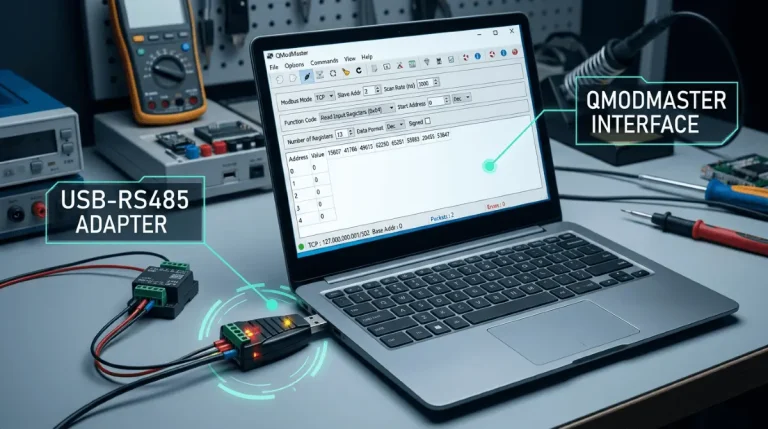
QModMaster Side: Connect as Modbus TCP Client
- In QModMaster, select the TCP mode.
- Enter the PLC’s IP address and port 502 (the standard Modbus TCP port).
- Set Function Code to 03: Read Holding Registers, Start Address 0, Number of Points 10.
- Click connect/read — you should see the values of the data block you assigned on the PLC side.
- Change a value in the PLC (e.g. in a watch table) and re-read: the QModMaster grid should reflect the change. That confirms the full chain.
Unit ID (Slave ID) with Siemens
Modbus TCP includes a Unit Identifier field that plays the role of the Slave ID. Most Siemens Modbus TCP server implementations accept Unit ID 1 (or 255 for “this unit” in some stacks). If reads fail while the connection itself succeeds, try Unit ID 1 first, then check Siemens’ documentation for your instruction’s expected unit identifier.
Troubleshooting
Connection refused / timeout
Check: is the PLC’s CPU in RUN? Is your PC on the same subnet as the PLC (e.g. 192.168.1.x)? Is a firewall on your PC blocking outbound TCP 502 or the PLC’s port? Windows Firewall is a frequent culprit — allow QModMaster through it.
Connects but no data / exception 02
The server is running but you asked for registers it doesn’t serve. Confirm which data block area the Modbus server instruction is mapped to, and that your Start Address falls inside it. See our address offset guide and exception codes guide.
Frequently Asked Questions
Does QModMaster work as a Modbus TCP client for any PLC brand?
Yes — Modbus TCP is a standard protocol. QModMaster connects to any Modbus TCP server (Siemens, Allen-Bradley, Schneider, etc.) as long as you know the device’s IP, port 502, and which registers it serves.
Which Siemens PLCs support Modbus TCP server mode?
S7-1200 and S7-1500 support it via the Modbus TCP instructions in TIA Portal. Check Siemens’ documentation for your exact CPU and firmware, since instruction availability and parameters vary by version.
Do I need to write to the PLC from QModMaster?
For a basic connectivity test, no — an FC03 read proves the server works. If you want to test writes too, use FC06/FC16 against registers your PLC program explicitly exposes for that purpose, and be aware of what the PLC does with those values.
Can QModMaster scan the PLC automatically?
Yes — QModMaster’s Scan feature polls a register range repeatedly, which is handy for watching PLC values change in real time. See the user manual for scan setup.