Test a VFD with QModMaster via Modbus (Guide)
A variable frequency drive (VFD) usually speaks Modbus RTU out of the box, which makes it one of the most common devices QModMaster users debug. This guide shows how to connect a VFD to QModMaster, read its status word, and write a frequency reference — the standard first test when commissioning or troubleshooting a drive.
Important: every VFD brand uses its own Modbus register map. All register addresses below are examples only — check your drive’s manual for the real status-word and frequency-reference registers. Never write to a register unless your manual confirms what it does; writing the wrong address can change drive behavior.
Step 1: Configure the Drive as a Modbus Slave
Before QModMaster can talk to the drive, set these parameters on the VFD itself (usually via its keypad or config software):
- Modbus slave address — pick a free address on the bus (commonly 1) and note it down.
- Baud rate — 9600 is the typical default; confirm against your drive.
- Data format — commonly 8N1 or 8E1; must match on both ends.
- Enable Modbus control source — many drives ignore Modbus commands until you switch the control/reference source to the communication port.
The exact parameter numbers differ per brand — your drive’s manual is the only authority here.
Step 2: Connect in QModMaster
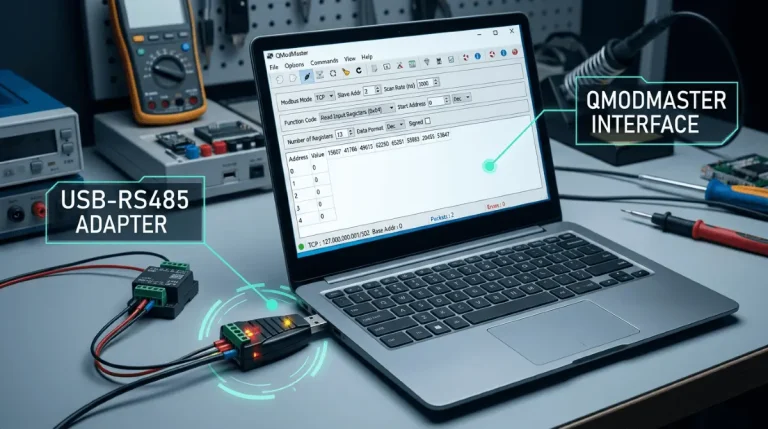
Wiring: connect your USB-to-RS485 adapter’s A/B terminals to the drive’s RS485 terminals (mind polarity). Need an adapter? See our USB-to-RS485 adapter buying guide (adapter deals).
- In QModMaster, select Serial (RTU) and your adapter’s COM port.
- Set baud rate, parity and stop bits to match the drive (e.g. 9600 / None / 1 — verify against your drive).
- Set Slave ID to the address you configured on the drive.
- If replies are garbled, try toggling RTS control (RTS control guide).
Step 3: Read the Status Word (FC03)
Most drives expose a status word register (running/stopped, faulted, direction) that you read with function code 03:
- Set Function Code to 03: Read Holding Registers.
- Set Start Address to your drive’s status-word address (example only — check your drive’s manual) and Number of Points to 1.
- Read the value and decode the bits using your drive’s manual (e.g. bit 0 = ready, bit 2 = running).
If the read returns exception 02, you’re asking for an address the drive doesn’t have — re-check the manual and the address offset guide.
Step 4: Write the Frequency Reference (FC06)
Once status reads work, the classic next test is commanding a frequency:
- Set Function Code to 06: Write Single Register.
- Set Start Address to your drive’s frequency-reference register (example only — check your drive’s manual).
- Enter the value in the drive’s units (many drives use 0.01 Hz steps, so 2500 = 25.00 Hz — confirm in the manual).
- Verify with another FC03 read of the status word or output frequency register.
① Drive’s control source set to Modbus/communication? ② Slave ID matches? ③ Baud/parity/stop bits identical on both ends? ④ A/B wiring not swapped? (Swap once and retry — harmless.) ⑤ Termination resistor needed on long runs? ⑥ Only one master on the bus? ⑦ RTS control toggled? ⑧ Right registers per the manual?
Frequently Asked Questions
What register address is the status word on my VFD?
There is no universal answer — every brand and series uses different addresses. This is why the examples above are marked “example only.” The status-word address is in your drive’s Modbus/communication appendix.
The drive reads fine but won’t accept writes — why?
Most drives have a “control source” or “command source” parameter that defaults to the keypad. Until you switch it to the Modbus/communication port, writes are ignored or rejected. This is the single most common cause.
Can I damage the drive by writing wrong registers?
Yes — writing an unknown register can change motor parameters or behavior. Only write to addresses your drive’s manual documents for the purpose you intend, and keep the motor unloaded during first tests.
Do I need a special cable for VFD Modbus?
You need an RS485 interface — a USB-to-RS485 adapter is the standard choice. Cheap unbranded adapters are a common source of flaky VFD connections; our buying guide covers what to look for.