QModMaster Tutorial: Your First Modbus Session in 10 Minutes
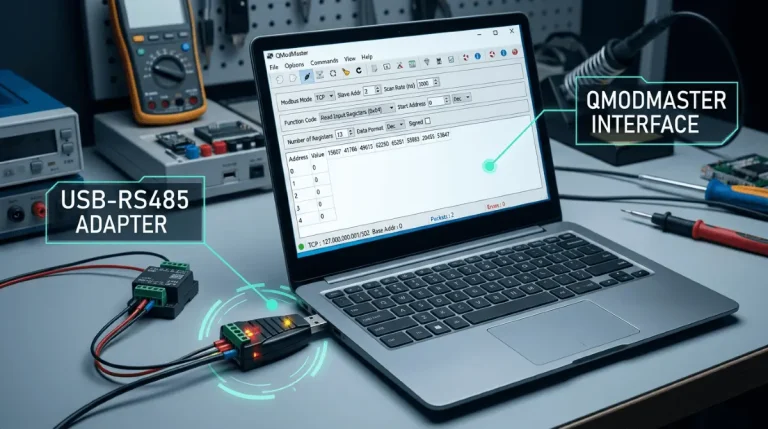
In about ten minutes you will read real data from a Modbus device — or from a Modbus slave simulator if you don’t have hardware yet. This tutorial assumes you’ve never touched Modbus before. Want the concepts behind these steps? Read what a Modbus master is. For every dialog explained, see the QModMaster user manual; to compare alternatives, see our free Modbus master roundup.
What You Need
- The QModMaster portable .zip from our download page (Windows 7/10/11, or Linux — there is no macOS build).
- For RTU: a USB-to-RS485 adapter and a Modbus slave device (or a slave simulator app).
- For TCP: the IP address of a Modbus TCP device or simulator.
Step 1 — Download and Unzip
Get the latest portable .zip (v0.5.2 stable) from the download page and unzip it anywhere. There is no installer — just run the executable.
Step 2 — Create an RTU Connection
Go to File → New and choose RTU. Set your adapter’s COM port (e.g. COM3, or /dev/ttyUSB0 on Linux), 9600 baud, 8 data bits, No parity, 1 stop bit — and Slave ID 1. These must match your device’s serial settings. (For TCP instead: choose TCP, enter the device IP and port 502.)
Step 3 — Read Holding Registers
Open the read dialog, pick function code 03 – Read Holding Registers, set Start Address to 0 and Number of Points to 10, then click Read. If the device answers, ten register values appear. If you get a timeout, re-check the Step 2 settings and your wiring.
Step 4 — Change How the Data Looks
The same registers can mean different things. Use the View menu to switch the display format — Binary, Hex, Int16, Int32, Float32 — until the numbers make sense for your device.
Step 5 — Turn On Scan
Enable Scan mode and QModMaster polls the device continuously, updating the values live. This is how you watch a sensor change in real time.
Step 6 — Inspect the Raw Traffic
Open the Bus Monitor panel. It shows the actual bytes of every request and reply in hex, with timestamps. When something breaks, this panel tells you whether the device answered at all — the single most useful debugging view you have.
Frequently Asked Questions
QModMaster can’t find my COM port. What now?
Check that the USB-to-RS485 adapter driver is installed (look in Windows Device Manager or run `ls /dev/ttyUSB*` on Linux), close any other program using the port, unplug and replug the adapter, then restart QModMaster.
I get a timeout on every request. What’s wrong?
Timeouts almost always mean: wrong COM port or baud rate/parity settings, wrong slave ID, swapped A/B wires on the RS485 bus, or the device isn’t powered. Open the bus monitor — if you see requests but no replies, the problem is on the device/wiring side.
Do register addresses start at 0 or 1?
QModMaster uses 0-based protocol addresses, matching what goes on the wire. Many device manuals print 1-based addresses (e.g. 40001), so subtract 1 — manual address 40001 is protocol address 0.
Can I use this tutorial for Modbus TCP?
Yes. Create a TCP connection instead of an RTU one — enter the device’s IP address and port 502 — and every step from reading registers onward is identical.